
Your town has a story.
Municipal social media that tells it.
Turn local information into useful social updates, with assisted drafting, a shared calendar, and your team’s approval at the center.
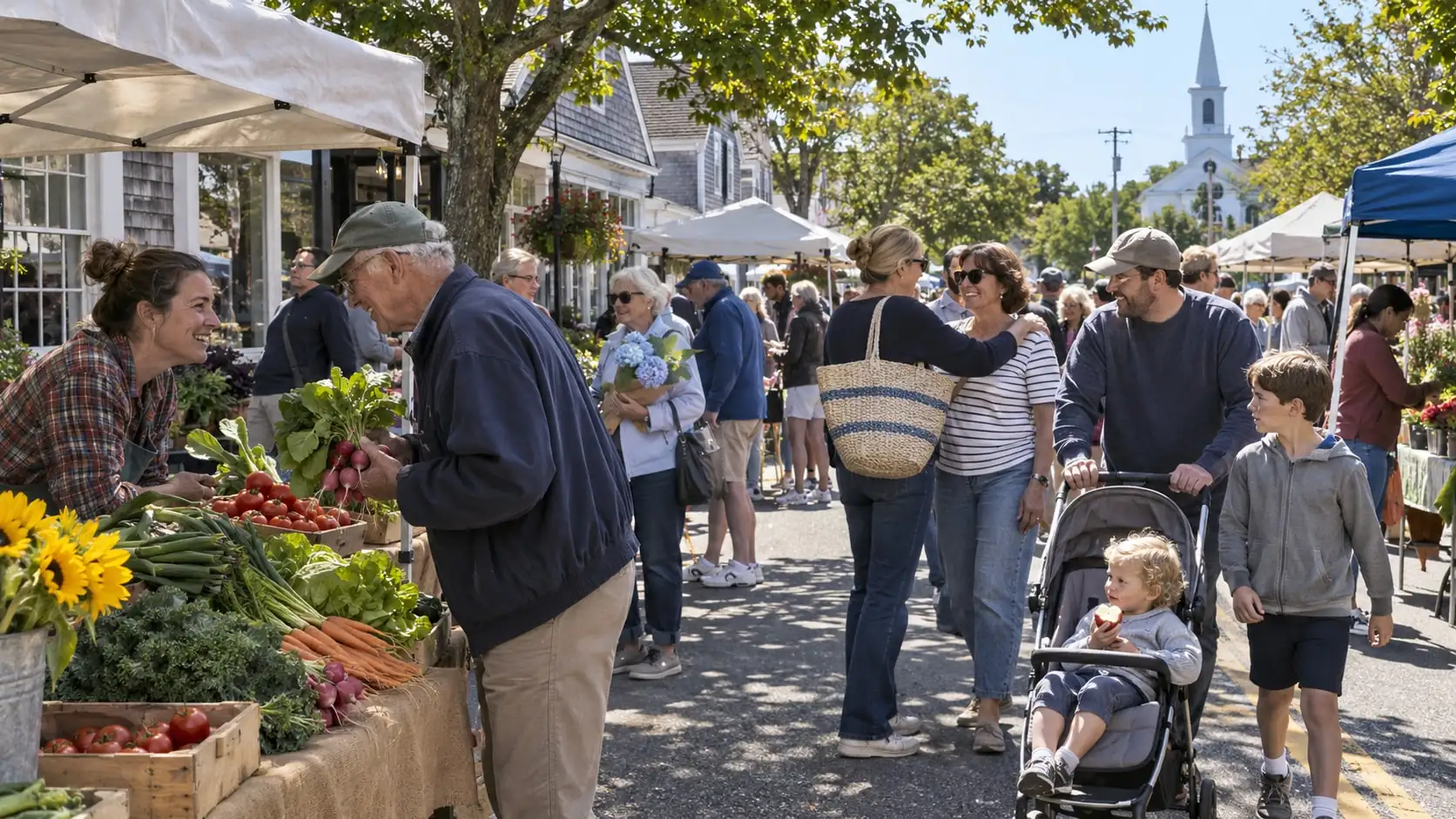
The moments are already happening.
Help more of your community find them.
Real community photography · FOCA Stock · Photography & sources
Less searching.
A clearer view of what’s next.
Events, posts, and municipal reminders share a calendar, so staff can see the plan together.
Start with local facts.
Confirmed event details, service notices, and official information give a useful post its starting point.
Make it sound like your town.
Use an assisted draft, choose an appropriate image, and edit the wording before it goes to review.
Your team gives the go-ahead.
Nothing reaches a resident that somebody on your staff has not approved. Who can do what is set by role, and the limit is real rather than a grayed-out button: it is checked by the system itself for every action. A Creator drafts, edits and uploads. An Approver does all of that and approves, rejects and unlocks. An Administrator adds settings, team and exports. Once a post is approved it is locked, and it goes out at its scheduled time on its own — nobody publishes by hand in the ordinary flow. To change approved wording, an Approver unlocks it first, which removes the approval and sends it back for review. How your data is held →
Familiar places.
A library you can find them in.
Keep local photographs and reusable imagery together. Browse by department or source, then choose the image that belongs with the message.
- Upload photographs and short videos through the mobile-web Studio.
- Find media by image, tag, or department.
- Review the photograph and the words before approval.
One queue.
One person who owns it
When a resident asks about the leaf schedule under a post, the question should not depend on whoever happens to open Facebook that afternoon. The Inbox gives a comment an owner, a state, and a reply somebody approved.
- Assign a conversation to a named member of your team, chosen from your own roster.
- Mark it resolved when it is finished — and that is a separate fact from whether a reply was sent, because a clerk who phones the resident back has resolved it without replying.
- Saved replies for the answers you type every week. Your wording, inserted into the draft, still edited and approved by a person.
- Replying publicly in the village’s voice needs approval authority. Every triage, assignment and reply is written to the activity trail.
An approved reply is not a sent reply, and the screen says so. It reads “Approved — not sent yet” until a live channel carries it. Nothing reads comments from a platform into Municiply today, so the queue starts empty rather than full: it fills when a channel is connected live and the platform grants permission to read comments on your own posts. What setup involves →
Village Hall closes at noon.
The parade post does not go out at one.
Snow closes the building on a Tuesday. Three cheerful posts are scheduled for that afternoon, written two weeks ago. You need both halves: stop those, and tell people about the closure.
- Pause routine publishing with a reason. Scheduled posts stop going out on their own — enforced inside the publishing job, not just drawn on the screen — and the paused state shows on every page so the next person in cannot miss it.
- Send the closure anyway. An urgent notice from an Approver publishes immediately while the pause stays on. Pausing the calendar never gags the village.
- Decide about the backlog when you resume. Send everything that came due back for review, or let the queue carry on. You choose at that moment; Municiply will not choose for you.
- Who paused, why, who sent the notice and who resumed is all recorded.
Pausing and resuming need approval authority. Delivery of the notice still depends on a connected channel, and this is not a substitute for your official emergency alerting.
A month of possibilities.
Still your decisions
A member of staff prepares the month when they choose to. Municiply does not do it on a timer.
How a month gets prepared
Prepare a month is built and staff-triggered: pick the month, see a preview of what would be created and what was refused for want of a confirmed fact, then create the drafts. Nothing is scheduled or published by that step — every draft still goes through review. Alongside it: assisted drafting, event promotion drafts, a review queue, a shared calendar and a media library.
Why a person starts it
Preparation runs when a member of staff decides it should, never on its own. That is deliberate: a month of drafts nobody asked for is a month nobody has read. Publishing, replies and engagement reporting run on your connected channels.
Channel demonstrations are illustrative. We confirm your village’s own accounts with you during setup.
What teams ask
before the first post
Does anything publish without our approval?
The review workflow puts authorized staff in control. Staff checks local facts and wording before approving a post, and verifies its publishing status afterward.
Can we use our own photos and voice?
Yes. Your own media and local details belong in the workflow. Assisted copy is a starting point your staff can edit, rather than a substitute for knowing your community.
Do Facebook, Instagram, Google, and Nextdoor all work the same way?
Each channel needs its own supported connection and setup. A visual demonstration does not mean that every channel is live for every account. We will confirm availability with you.
Do we have to replace our website?
The social workflow is separate from your municipal website. Virtual Agent is an optional website addition, with its own installation and source setup.
And at the end of the month,
a report you can hand over.
The work you approved becomes a monthly view your mayor and board can read — what went out, how far it traveled where a channel supplies that, and what residents kept asking about.
Start with one week of your own calendar.
Bring one event, one recurring question, or one busy week. We’ll show you what comes back.